
Obsidian Vaults
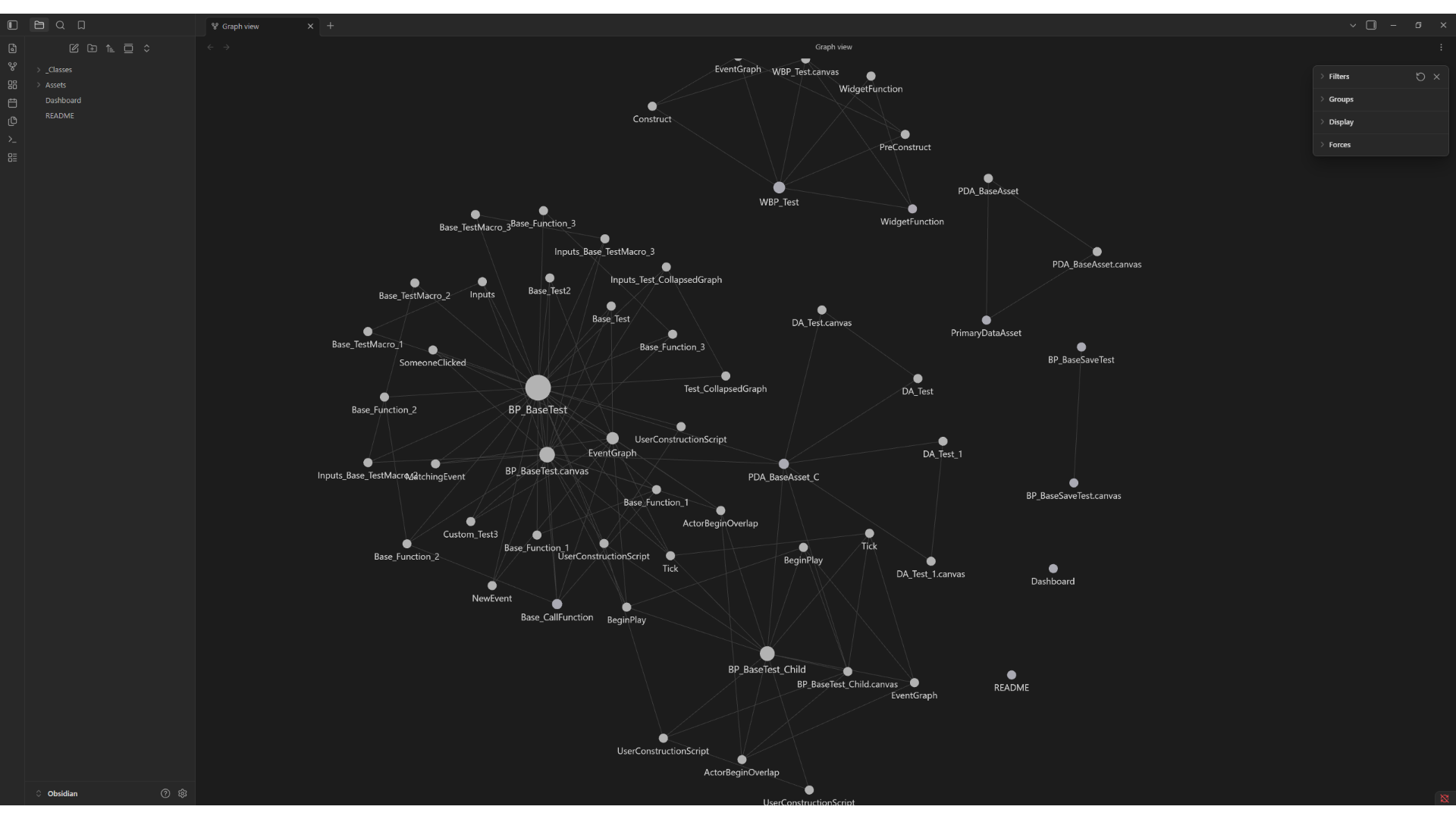
Obsidian export turns a folder of Blueprints into an Obsidian vault: a set of linked Markdown notes you can
browse, search, and visualize in the free Obsidian app. Every asset gets a note, and every
function, event, macro, and graph gets its own sub-note, connected with [[wikilinks]] so Obsidian’s native
graph view renders how your whole project connects.
Obsidian is a batch-only format: a vault is many files, so it is written by the folder batch exporter, not the single-asset dialog. There are no Obsidian-specific settings, the export honors the same project settings as every other format.
When to use Obsidian
Section titled “When to use Obsidian”| You want to… | Use |
|---|---|
| Browse and explore a project like a wiki, with a visual graph | Obsidian |
| Read one asset as clean text, review it in a PR | Markdown |
| Feed AI a project-wide call graph | Graphify |
| Render a diagram anywhere | Mermaid |
| Drive your own tooling | JSON |
The vault is a human-facing format. For AI agents, prefer the Markdown export for per-asset detail and the
Graphify export (ProjectLinkage.graphify.json) for cross-asset linkage. The vault README written into every
export says the same.
Export a vault
Section titled “Export a vault”- In the Content Browser, right-click one or more folders → Export Blueprints with GraphScribe….
- In the batch dialog, set Format to Obsidian, pick your output directory, and click Export.
- GraphScribe writes the vault under
<Output Directory>/Obsidian/(batch exports always write into a per-format subfolder).
The single-asset export dialog does not list Obsidian (a vault can’t be a single string). If an Obsidian request ever reaches the single-asset path, it falls back to Markdown.
The vault layout
Section titled “The vault layout”Obsidian/├── Dashboard.md # vault dashboard (frontmatter + Dataview example queries)├── README.md # layout, note schema, reading order├── _Classes/│ └── <ClassName>.md # one deduplicated note per referenced class└── Assets/ └── <ContentRoot>/ # /Game → Assets └── <AssetPath>/ # mirrors your Content structure ├── <AssetName>.md # the actor note ├── <AssetName>.canvas # per-asset Canvas layout ├── Functions/<Function>.md # one note per function / custom event ├── Events/<Event>.md # one note per native engine event ├── Macros/<Macro>.md # one note per macro graph └── Graphs/<Graph>.md # one overview note per graphFor example, /Game/Blueprints/BP_BaseTest.BP_BaseTest produces
Assets/Blueprints/BP_BaseTest/BP_BaseTest.md plus Functions/, Events/, Macros/, and Graphs/ sub-notes
and BP_BaseTest.canvas.
Native engine events use their display names: ReceiveBeginPlay becomes Events/BeginPlay.md. Filenames are
sanitized for characters Windows/Obsidian dislike (\ / : * ? " < > | → _), and name collisions get a
deterministic suffix (Name_GraphName, then _2, _3, …).
Open the vault
Section titled “Open the vault”- Install the free Obsidian app.
- In Obsidian, choose Open folder as vault and select the
Obsidian/folder you exported. - Everything works with core features, no community plugins required:
- Graph view shows the whole note network (the project linkage as
[[wikilinks]]). - Canvas (a core plugin, enabled by default) opens each asset’s
.canvaslayout. - Mermaid diagrams render inside notes natively.
- The Dashboard includes example Dataview queries without the optional Dataview plugin installed, those blocks simply show as code.
- Graph view shows the whole note network (the project linkage as
What each note contains
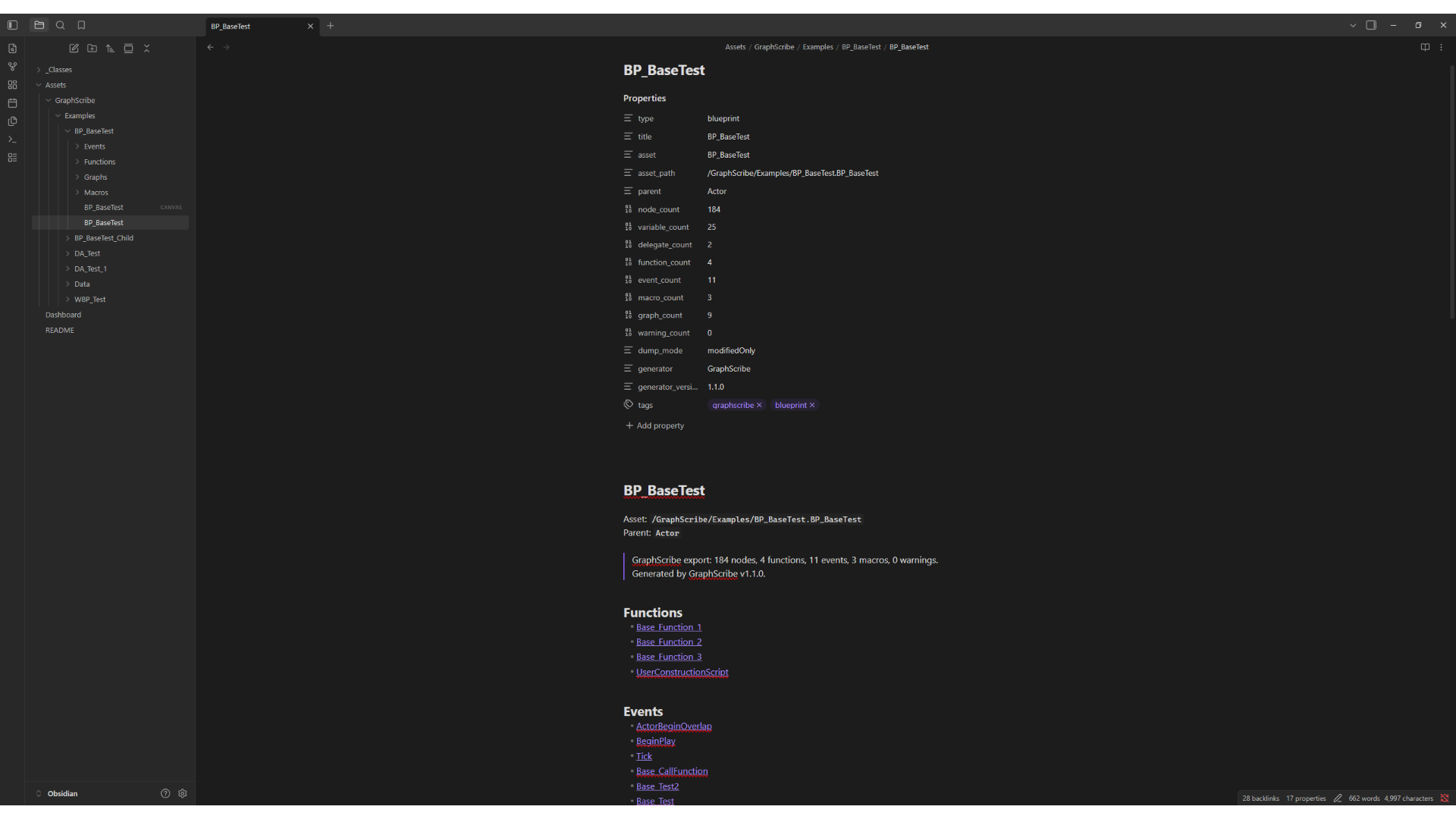
Section titled “What each note contains”Actor notes (<AssetName>.md)
Section titled “Actor notes (<AssetName>.md)”The note for the asset itself: YAML frontmatter, the title, header lines (asset path, parent/class), a summary quote, index sections ## Functions / ## Events / ## Macros / ## Graphs, ## Warnings (when the export produced diagnostics), the shared asset sections, ## Variables, ## Delegates, ## Class References, ## Widget Tree, ## Animations, the same content as the Markdown export, plus ## Calls (cross-asset calls) and ## Uses (class references).
Function / event / macro sub-notes
Section titled “Function / event / macro sub-notes”Each callable gets its own note:
# <DisplayName>and a- **Asset:** [[…]]link back to the actor note,- ## Overview: A fenced Mermaid
flowchart LRof the root’s flow (Obsidian renders it inline), - ## Logic: The inputs/outputs/locals signatures and the full exec walk, same style as Markdown,
- ## Calls: Grouped into ### Project (Blueprints call Blueprints) and ### Engine (plain text, never
wikilinks, e.g.
- Actor::K2_DestroyActor), - ## Called by: Which of this asset’s roots execute this callable,
- ## Overrides: Wuper-calls to the parent asset (e.g. a child’s
BeginPlayoverriding the parent’s).
Graph overview notes (Graphs/<Graph>.md)
Section titled “Graph overview notes (Graphs/<Graph>.md)”One per graph, with type: 'graph' frontmatter, a ## Roots index of the sub-notes it contains, and a
## Overview full-graph Mermaid diagram.
Class notes (_Classes/<ClassName>.md)
Section titled “Class notes (_Classes/<ClassName>.md)”One deduplicated note per referenced class (type: 'class', class_name, class_path), linked from actor notes
and sub-notes via [[_Classes/…]].
Dashboard and README
Section titled “Dashboard and README”Dashboard.md (type: 'dashboard', tags: [graphscribe, dashboard]) ships ready-made Dataview queries against
the vault (TABLE … FROM "Assets" WHERE type = "blueprint", Functions, Events, and Classes queries). README.md
(type: 'vault-readme') documents the layout, the frontmatter schema for every note type, the fn:/evt: id
grammar, section conventions, and the recommended reading order.
YAML frontmatter
Section titled “YAML frontmatter”Every note opens with a ----delimited frontmatter block, so tooling and Dataview can query the vault:
| Note type | Keys |
|---|---|
| Actor | type, title, asset, asset_path, parent, node_count, variable_count, delegate_count, function_count, event_count, macro_count, graph_count, warning_count, dump_mode, generator, generator_version, tags: [graphscribe, <type>] |
| Function / event / macro | type, kind (function / custom-event / native-event / macro), asset, asset_path, graph, calls (machine ids this root executes), called_by (machine ids of this asset’s roots calling it), overrides, tags |
| Graph overview | type: 'graph', kind, graph, asset, asset_path, node_count, root_count, tags |
| Class | type: 'class', class_name, class_path, tags |
| Dashboard / README | type: 'dashboard' / type: 'vault-readme', tags |
Machine ids and wikilinks
Section titled “Machine ids and wikilinks”Sub-notes reference each other with machine ids, the same fn: / evt: grammar as the
Graphify export:
fn:/GraphScribe/Examples/BP_BaseTest.BP_BaseTest::Base_Function_1a function,evt:/GraphScribe/Examples/BP_BaseTest.BP_BaseTest::BeginPlaya native event (display name),bp:<AssetPath>an asset,cls:<ClassPath>a class reference.
Wikilinks use Obsidian’s [[path|text]] form, e.g.
[[Assets/GraphScribe/Examples/BP_BaseTest/Functions/Base_Function_1|Base_Function_1]], with cross-asset links
labeled BP_Other::SomeFunction. Engine (/Script) calls are written as plain text, they are not part of
your project and never become wikilinks.
The per-asset Canvas
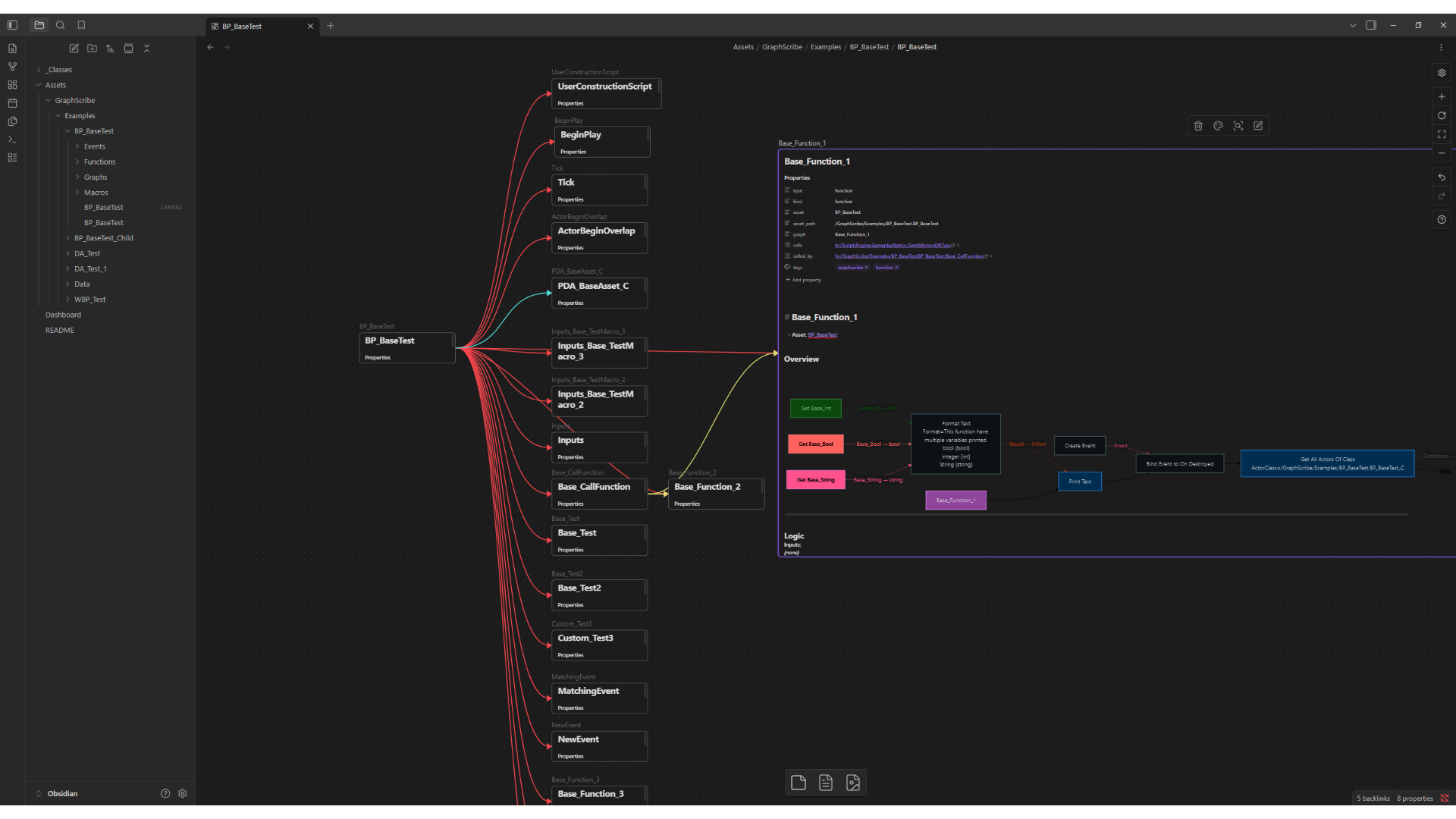
Section titled “The per-asset Canvas”Every asset gets <AssetName>.canvas (Obsidian’s Canvas core format): the actor note at the top-left, each
sub-note positioned from its graph coordinates, and class notes along the right, connected with colored edges
(1 = defines, 3 = same-asset calls, 5 = uses). Canvas ids are deterministic, so re-exporting produces a
byte-identical layout.
Notes and limits
Section titled “Notes and limits”- Batch-only: Vaults come from the folder exporter, there is no single-asset Obsidian export.
- No Obsidian-specific settings: The vault honors Default Save Directory, Property Dump Mode, and the other project settings.
- Not versioned: Like Markdown and Mermaid, the vault is a human-readable view with no machine contract. The exact wording of notes may change between releases. Frontmatter ids are stable, though.
- Canvas is additive: Reopening and editing a canvas is fine, re-exporting replaces the files it writes.
- DataTables: are never exported, so they never appear in a vault.
Screenshot checklist
Section titled “Screenshot checklist”| Image | Shows |
|---|---|
obsidian-graph-view.png | Obsidian Graph view of the vault’s note network + file explorer sidebar |
obsidian-batch-dialog.png | Batch export dialog with Format = Obsidian |
obsidian-actor-note.png | An actor note in the Obsidian editor (frontmatter + index sections) |
obsidian-canvas.png | The per-asset Canvas layout with colored edges |