
Choosing a Format
GraphScribe can export the same asset in five different formats. They each serve a different purpose. Pick the one that matches what you’re trying to do. You choose the format in the export dialog’s Format combo (you can set a default format).
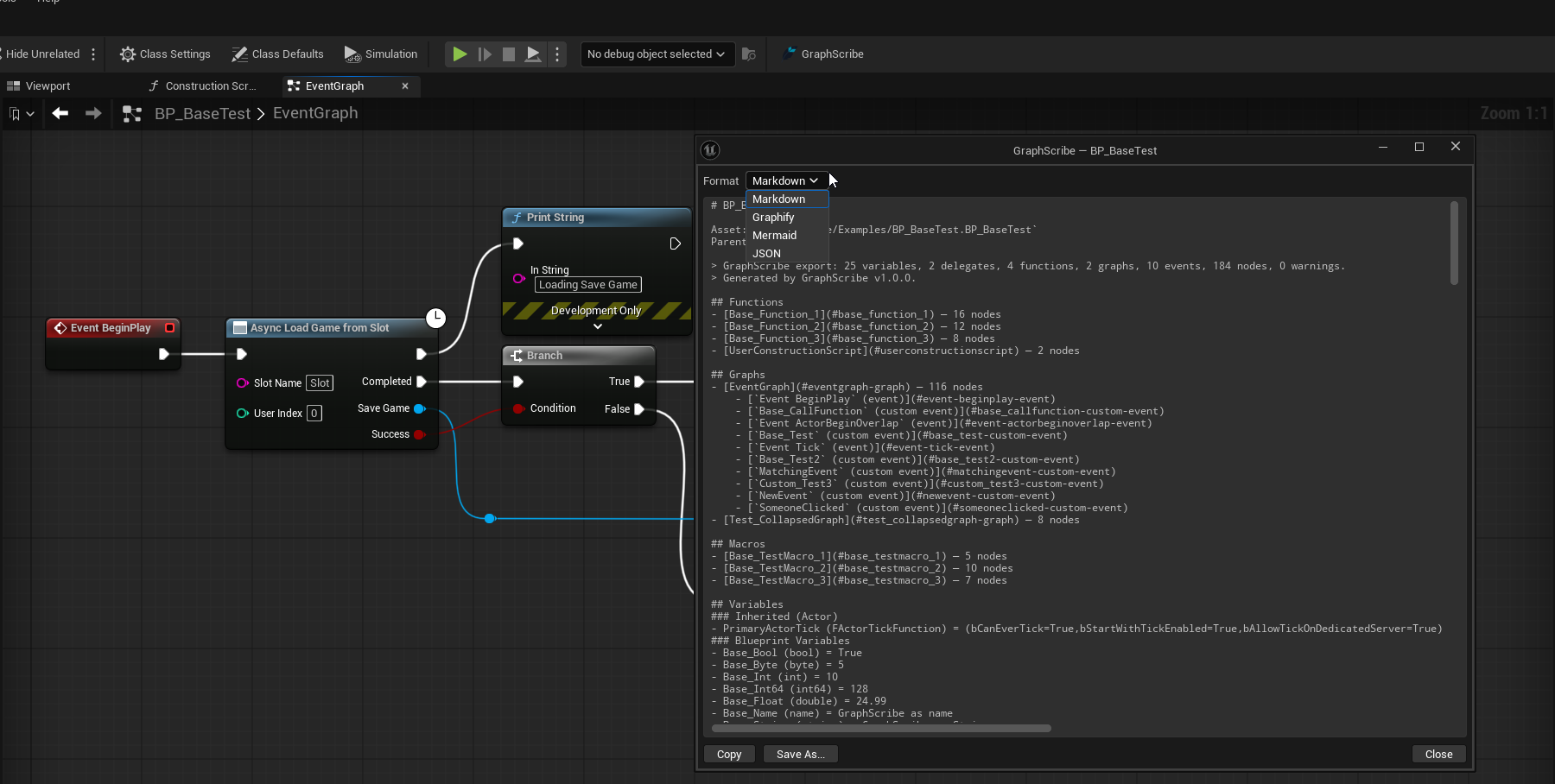
| Format | File extension | Best for | Readable by humans? | Readable by AI/tools? |
|---|---|---|---|---|
| Markdown | .md | AI agents, code review, documentation, PRs | Yes | Yes |
| Graphify | .graphify.json | Knowledge graphs and AI agents | Somewhat | Yes |
| Obsidian | .md vault | Browsing a project like a wiki, visual graphs | Yes | Yes |
| Mermaid | .mmd | Diagrams that render on GitHub, GitLab, Notion | Yes (as a diagram) | Yes |
| JSON | .json | Custom tools and scripts | Not really | Yes |
Markdown
Section titled “Markdown”The human-friendly option. Variables, functions, graphs, macros, delegates, class references, and widget trees become clean Markdown sections. This is the format you’ll read the most. See Markdown Output.
Graphify
Section titled “Graphify”A knowledge graph format designed for AI and graph databases. Unlike the other formats, Graphify:
- gives every Blueprint, function, and class a stable ID (
bp:/fn:/cls:), - records links between assets (
calls,defines,uses, plus per-assetcontains), - can merge every exported file into one project-wide graph (
ProjectLinkage.graphify.json), - writes the graphify-ready
graphify-out/graph.jsonwrapper so the graphify CLI can render an interactivegraph.htmlviewer of the whole project (auto-run by the editor when Generate Graphify Viewer is on).
This is what lets AI answer “who calls this function?” across your whole project. See Graphify: AI-Ready Graphs, and Graphify: Install & Use to load the exports into the Graphify tool.
Obsidian
Section titled “Obsidian”A multi-file vault for the free Obsidian app: one note per asset plus sub-notes for
every function, event, and macro, connected by [[wikilinks]] so Obsidian’s native graph view renders your whole
project architecture. Great for browsing a project like a wiki. Obsidian is batch-only, vaults are written by
the folder exporter, not the single-asset dialog. See Obsidian Vaults.
Mermaid
Section titled “Mermaid”A flowchart description that renders as a diagram anywhere Mermaid is supported. GitHub READMEs, GitLab, Notion, and more. Great for putting a visual of a Blueprint graph or widget hierarchy into a document. See Mermaid Diagrams.
A complete, structured dump of everything in the asset. Nodes, pins, edges, variables, class refs, widget tree, diagnostics, and more. Use this if you’re writing your own tooling to process Blueprint data. It’s verbose and not meant to be read by people. See JSON Output.
Same content in every format?
Section titled “Same content in every format?”Almost. Every format exports the full asset, but some things are format-specific:
- Graphify filters out Kismet utility noise (Branch, Sequence, Get/Set nodes,
Kismet*Librarycalls) so the graph keeps only gameplay linkage. Markdown/Mermaid/JSON keep the full node set. - Obsidian is a vault of linked notes (batch export only). Each note’s logic walk keeps the full node set, and the notes embed Mermaid diagrams of the flow.
- Selection exports contain only the selected nodes and omit variables, widget trees, and class references in every format.
- DataTables are never exported in any format.
Which one should I use?
Section titled “Which one should I use?”- Writing docs or reviewing code → Markdown
- Feeding AI or a knowledge base → Graphify
- Browsing a project visually → Obsidian
- Showing a visual diagram → Mermaid
- Building a tool → JSON