
Why New Unreal Engine Developers Should Use GraphScribe
On this page
Blueprints are the fastest way to get something running in Unreal Engine, and that’s exactly why beginners love them. Drag a node, connect a pin, hit Play, and it works. The problem shows up a few weeks later, when you open a graph you built before a break and genuinely cannot tell what it does.
A Blueprint is a pile of nodes and wires living inside a binary .uasset file. You can only read it inside the editor, on your machine, in one giant viewport. Screenshots rot, and nobody else can open your project file just to look at one system.
GraphScribe fixes that. It’s an editor plugin that turns any Blueprint into plain text and diagrams you can read anywhere. One click, and your graph becomes readable Markdown, a Graphify knowledge graph, an Obsidian vault, a Mermaid flowchart, or a JSON dump. If you’re a student or a new developer, here’s why that changes how you learn.
Your project becomes AI-ready
You’ve probably noticed that AI tools are good at reading code and bad at reading binaries. GraphScribe’s Graphify export turns your project into a knowledge graph that AI tools can actually understand: who calls this function, what runs on this event, how systems connect. It also lets you answer questions like “who calls this function?” across your whole project.
Even if you don’t use AI much yet, learning this workflow matters. Machine-readable project documentation is becoming a basic skill, and GraphScribe is the easiest way to experience it in Unreal Engine.
You can finally read your own logic
When you export a Blueprint with GraphScribe, you get a clean outline: every variable, function, graph, and delegate, in reading order, with your node names intact. It’s like suddenly being able to see the skeleton of your system instead of the spaghetti on screen.
That’s huge while you’re learning. Reading your exported graph forces you to understand the structure you built, and it makes it obvious where a system is tangled. The graph you think you built and the graph you actually built rarely match, and text makes that mismatch impossible to ignore.
Diagrams that render anywhere
GraphScribe exports Mermaid flowcharts of your graphs and widget hierarchies. Mermaid is a text-based diagram format that renders in GitHub, Obsidian, Notion, and a dozen other tools. Paste one of those diagrams into a README or a study note, and it just works.
For a student, that means your logic is no longer trapped inside a screenshot. It’s a living diagram you can drop into documentation, a portfolio, or a group chat when someone asks “how does your interaction system work?”
Building the documentation habit early
Senior developers document their work because they’ve been burned by undocumented projects. You get to start that habit before the burn happens.
Writing good docs used to mean opening every Blueprint, navigating every function, and transcribing what you found. That’s exactly why nobody does it. GraphScribe removes the painful part: it exports your logic as readable text, so you (or an AI tool) can go through it and turn it into documentation without ever opening the graph again. Export a system, skim the output, write a few notes, and you’ve documented it in minutes.
That habit is worth more than any single feature, because it’s the difference between a project you understand and a project you’re afraid to open.
Share your work without a screen recording
Portfolio time. You built a nice interaction system, but “here’s a 40-second screen recording” is a weak way to show it. With GraphScribe you can attach the actual logic: the Markdown export, the Mermaid diagram, the PR-style diff showing how a system changed between versions. Reviewers can read your logic at their own pace, which looks far more professional than a blurry screenshot.
The same goes for assignments and group projects. Export your graphs, drop them in the report, and the person marking it can actually follow what you built.
Understand what changed
Ever had a project stop working after someone “cleaned up” a Blueprint? GraphScribe exports are text, so your Blueprints finally work with version control like text files do. You get readable diffs when a graph changes, which means you can review what actually changed instead of guessing. That’s a skill that gets more valuable the bigger your project gets.
What does it actually offer?
To summarize, GraphScribe gives you:
- Markdown export: a clean, human-readable outline of every Blueprint.
- Graphify export: an AI-ready knowledge graph of your whole project.
- Obsidian export: a linked vault with one note per asset, function, event, and macro.
- Mermaid export: flowcharts that render in any Markdown tool.
- JSON export: the full structure of your graph for custom tooling or data mining.
One-click export of a single Blueprint, a whole folder, or just the nodes you selected. No build step, no scripting. Install the plugin, open a Blueprint, click the GraphScribe button, and save your first export in under a minute (quick start).
Learn faster by reading your own work
The single best piece of advice I can give a new Unreal developer is to learn to read your own code. Blueprints are wonderfully fast to build and frustratingly hard to revisit. GraphScribe closes that gap by giving your graphs a readable form that lives outside the editor, and it quietly builds the habits, documentation, and shareable artifacts that make you look like a much more experienced developer than your resume says.
If you’re starting out with Unreal Engine, grab GraphScribe on Fab, export one of your projects, and read it. It will take you about a minute, and it will change how you think about every graph you build afterward.
Keep reading
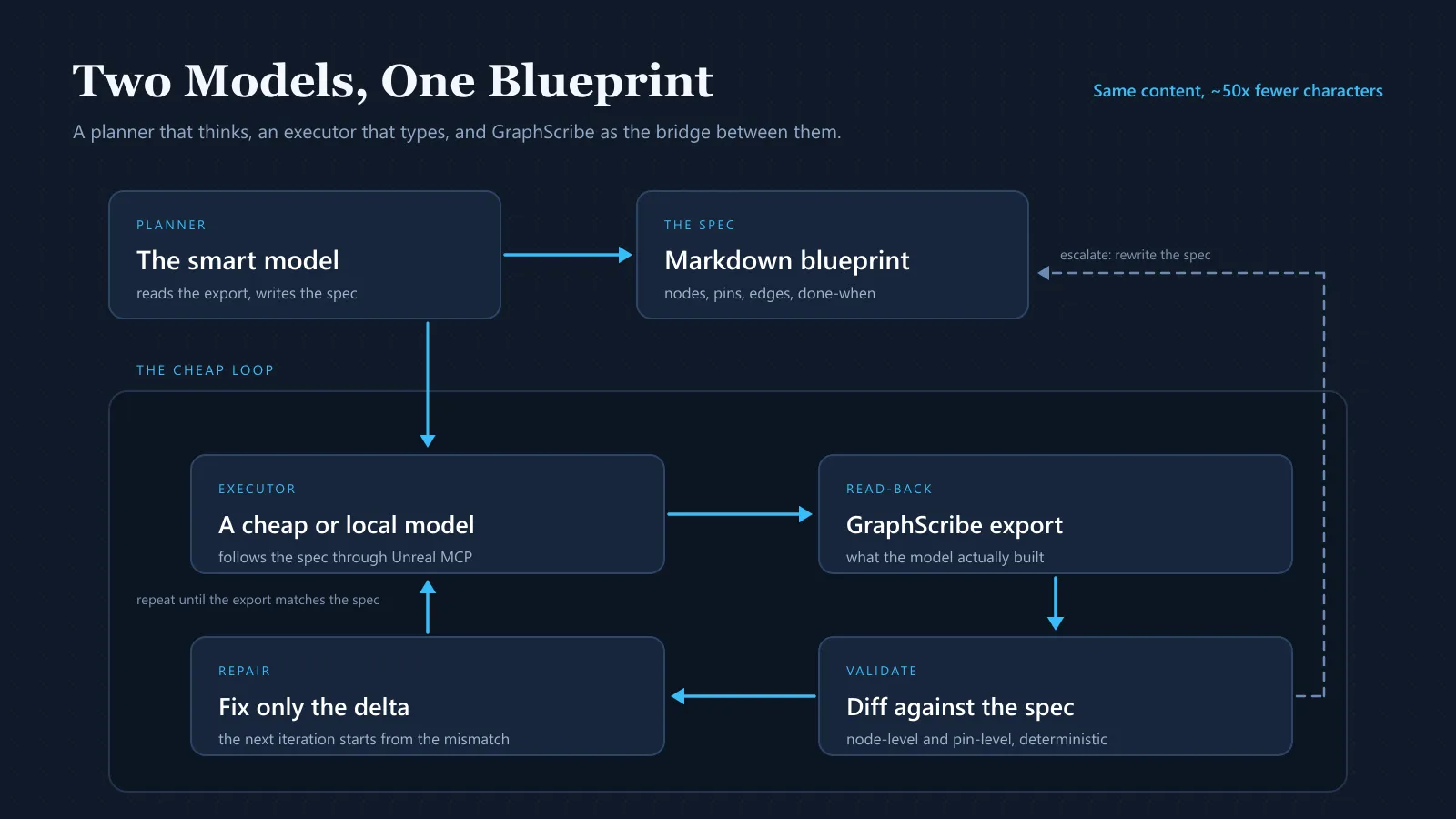
How I Use AI With Unreal Engine Blueprints Without Burning Tokens
Everyone says to switch to Unity or Godot if you want AI to help build your game. I stayed on Unreal and built a two-model workflow where an expensive planner writes the spec, a cheap local model executes it through Unreal MCP, and GraphScribe exports are the bridge between them.
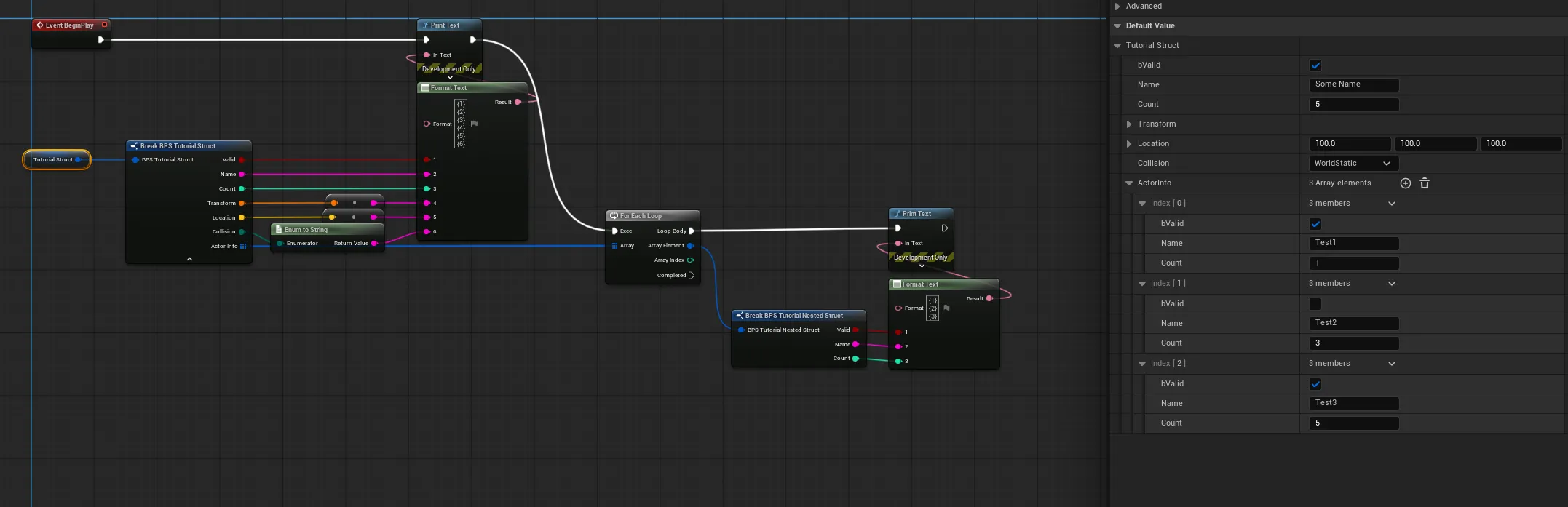
How to Create a Generic Struct-to-JSON Converter Node
Convert any Unreal Engine Struct into a clean, readable JSON string with a single Blueprint node, no more manual FormatText debugging.